
Upload repair photos using ConInspect web app.
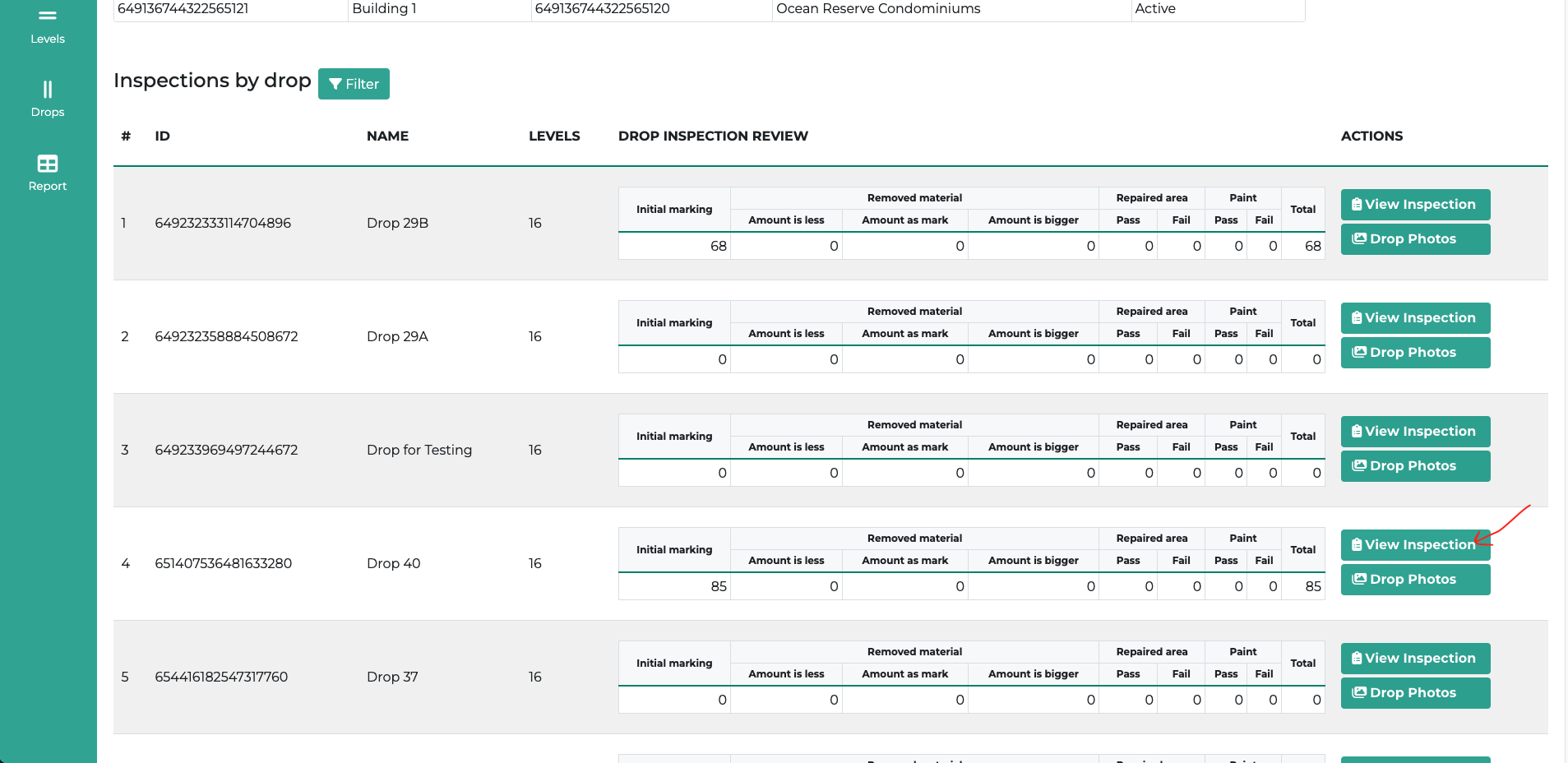
Click the “View Inspection” button.
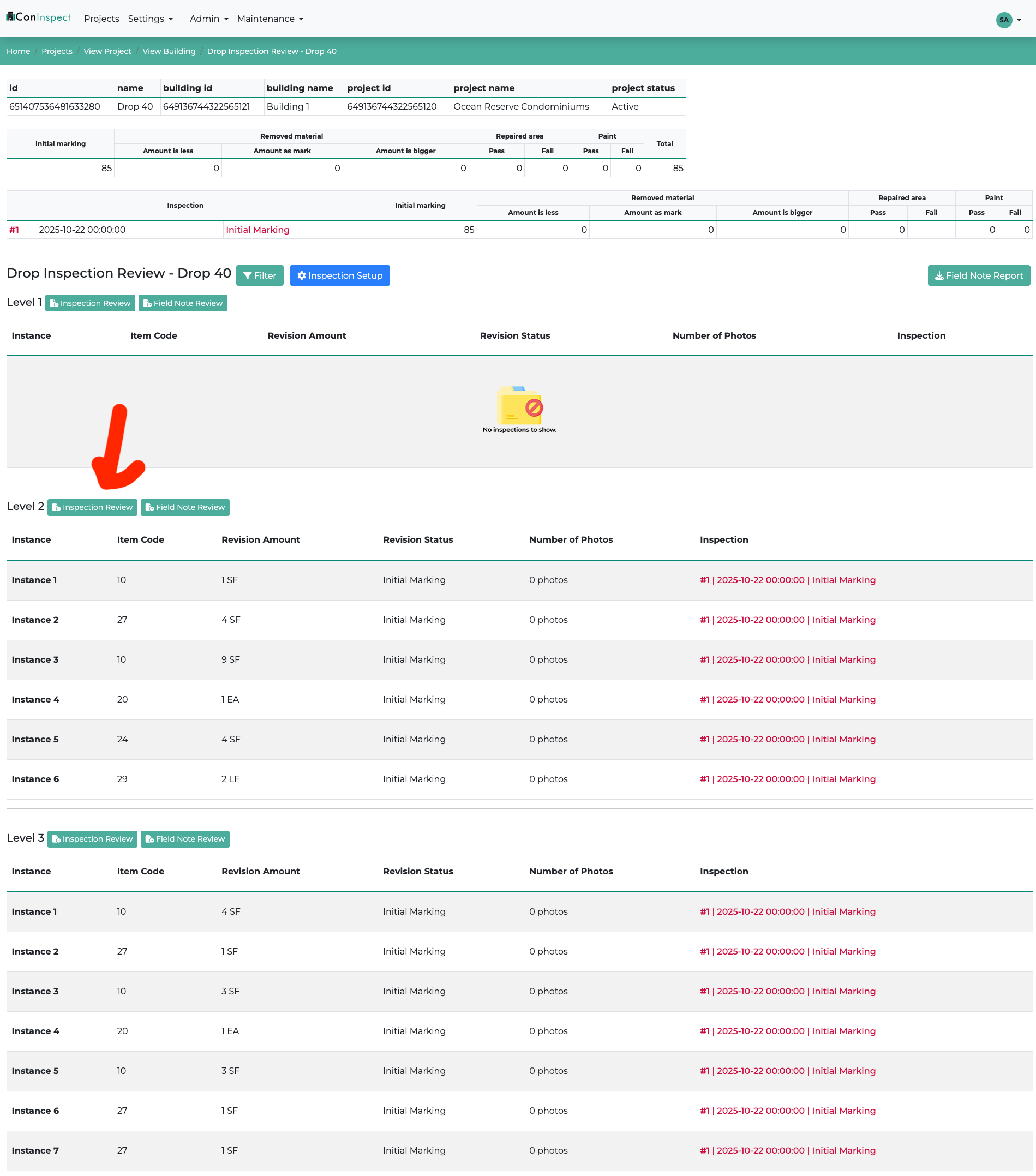
Click the “Inspection Review” button for the level where you want to upload your photos.
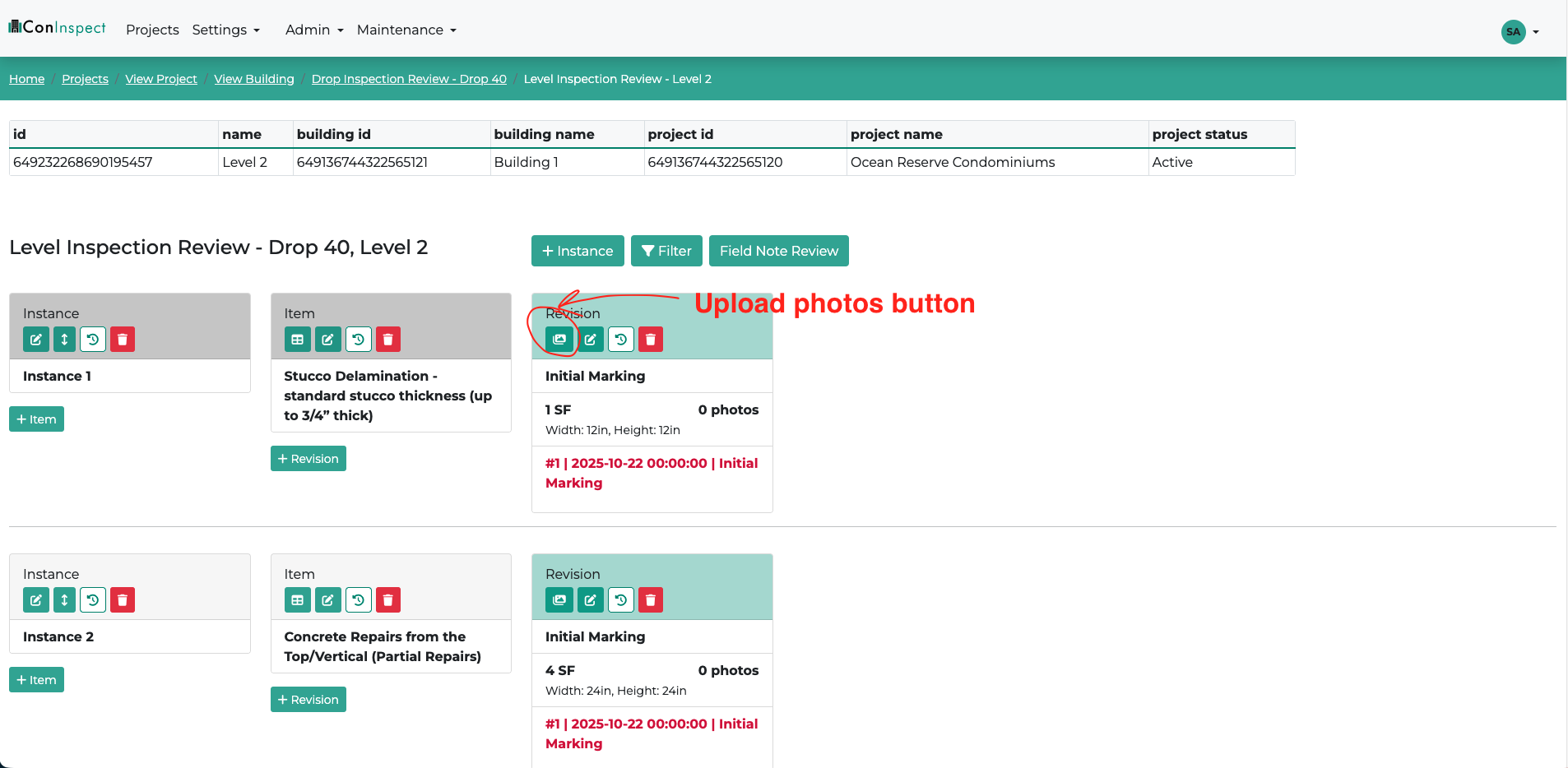
Click the “Upload Photos” button for the repair where you want to upload your photos.
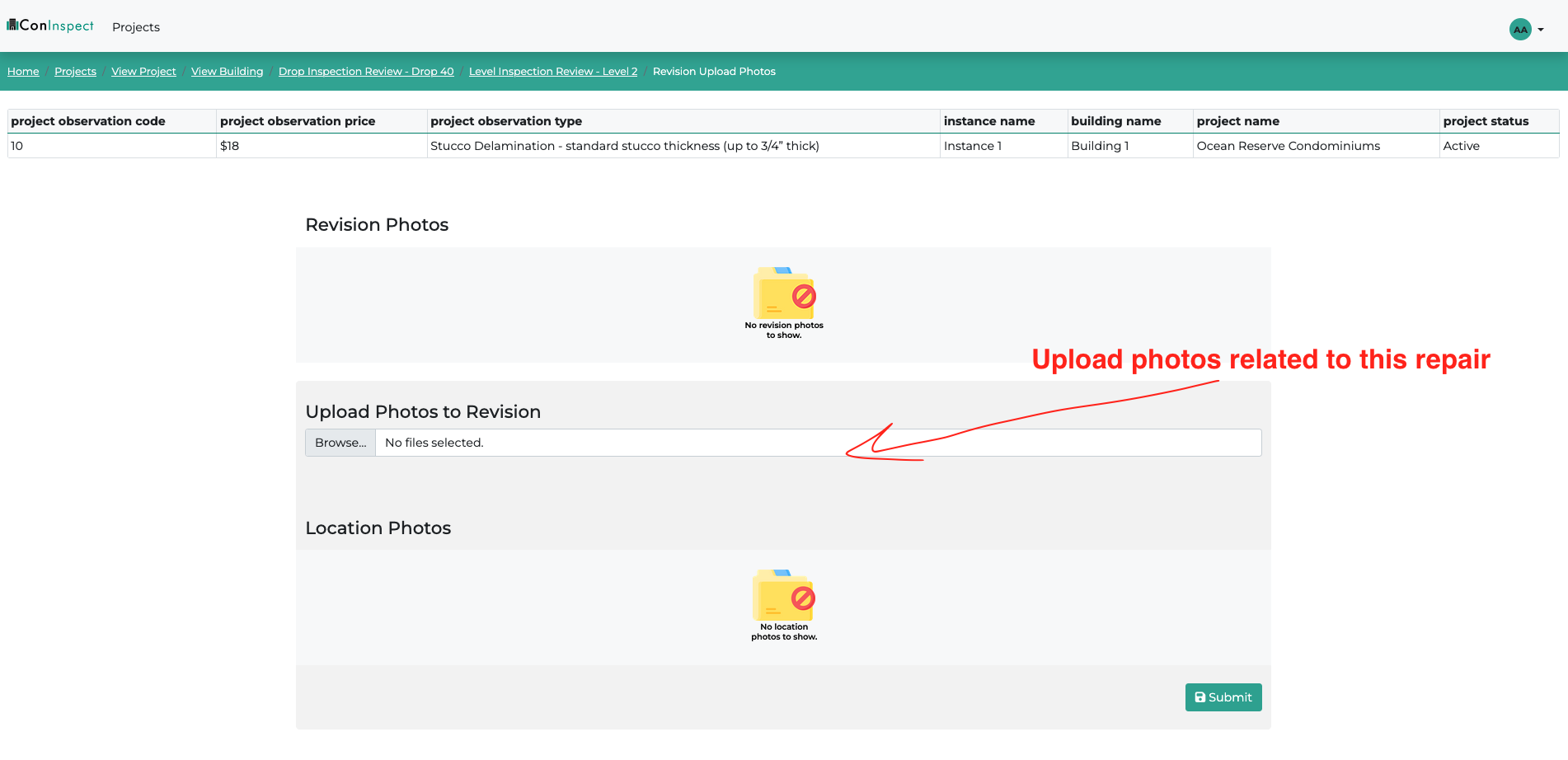
Click “Browse” to choose photos. You can choose multiple photos.
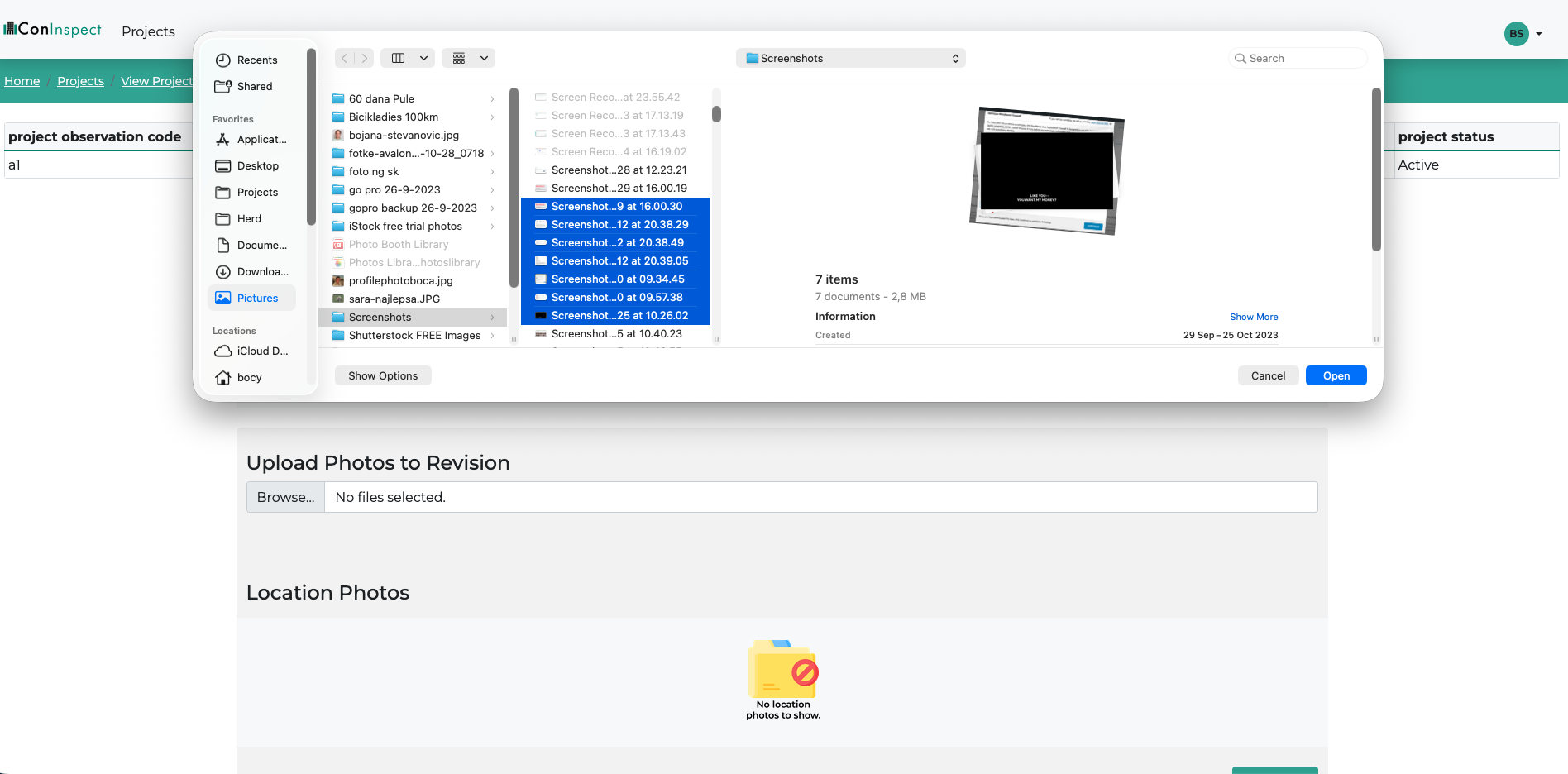
You can choose multiple photos. You can choose photos related to different repairs at this location (drop, level).
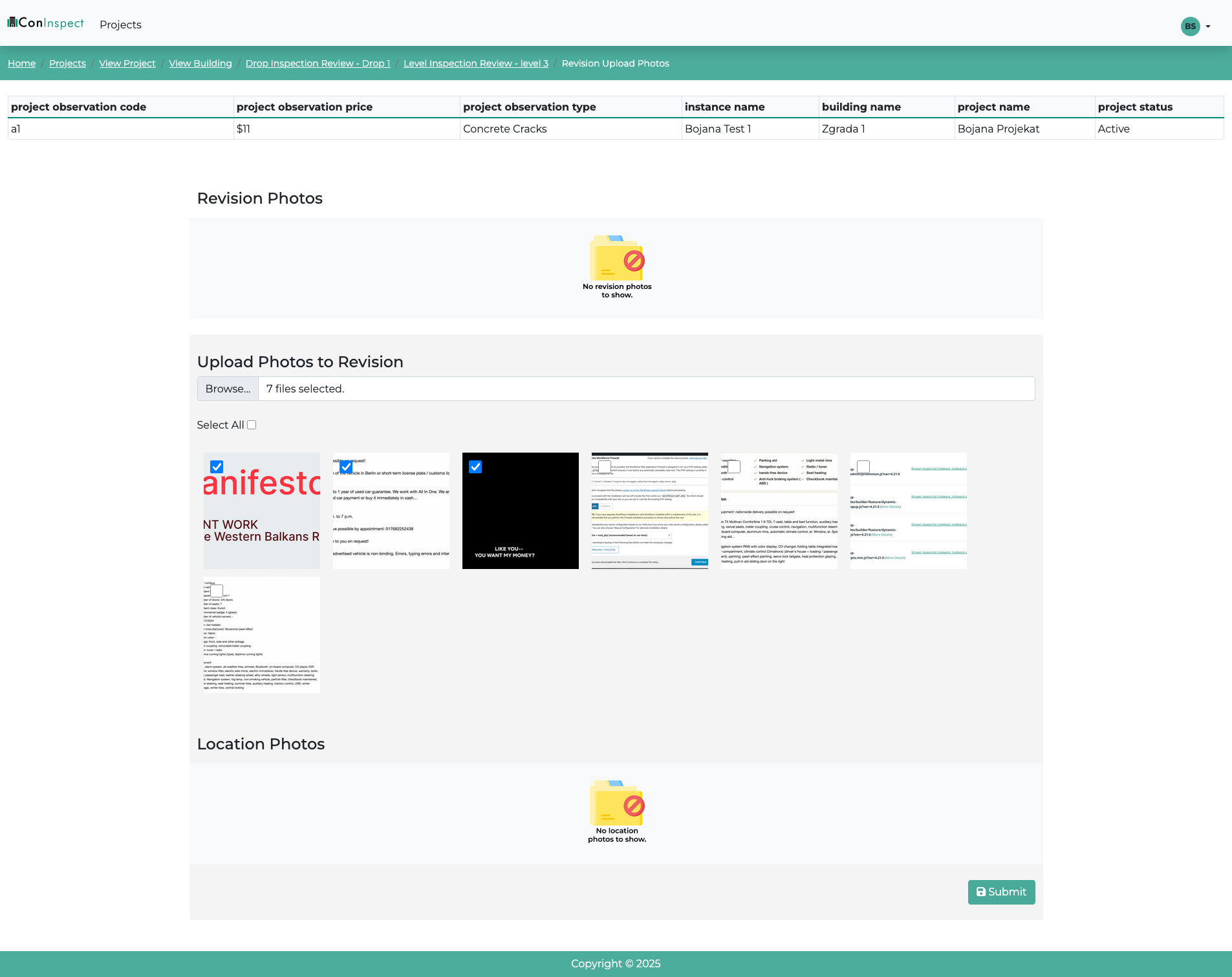
You will get the preview of the photos. Select the photos you want to use for the current repair. The photos that are not checked with the blue checkmark will be uploaded to this location (drop, level) and you will be able to assign them to the different repairs at this location. Click the “Submit” button to upload the photos.
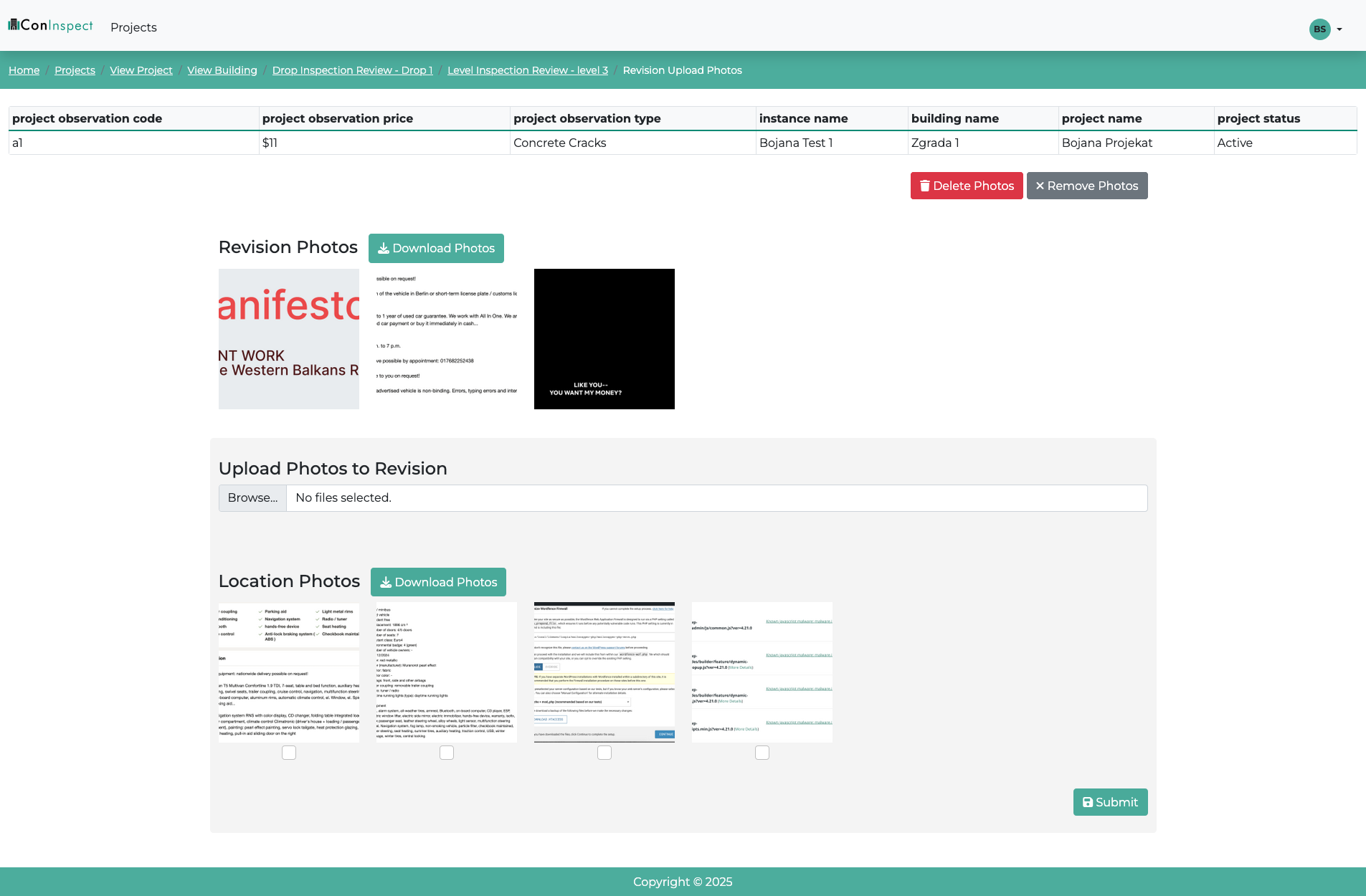
“Revision Photos” are the photos assigned to the current repair. “Location photos” are the photos uploaded to this location (drop, level) that can be assigned to other repairs in this location. To remove photos from the revision, click the “Remove Photos” button.
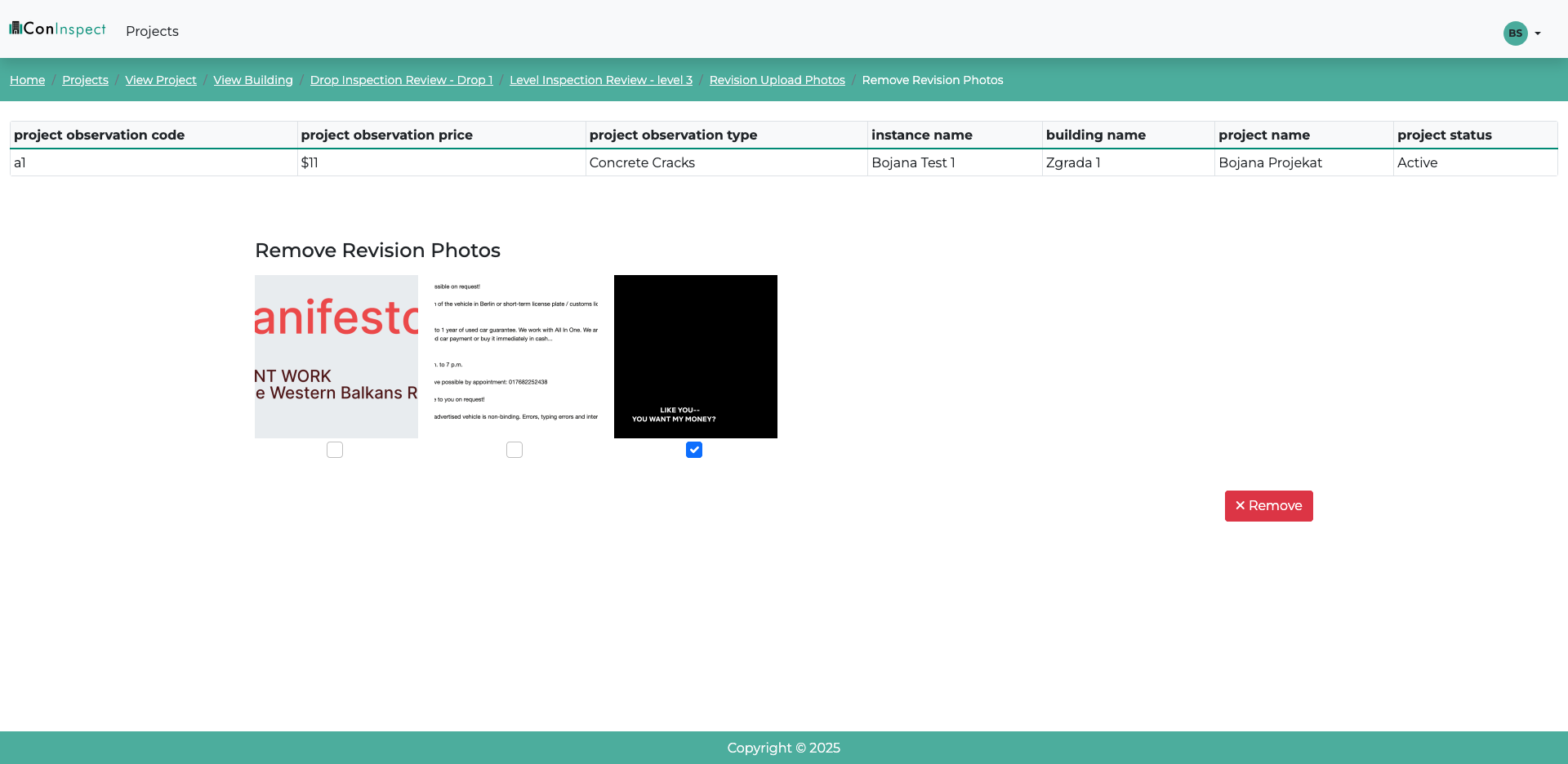
Mark the photos you wish to remove from the repair. To save changes, click the “Remove” button.